
Theme App Block for 2.0 Themes
Using the Theme App Block method gives you more flexibility and control over where your Countdown Timer Bar appears. Whether you want to feature it on product pages, your homepage, or custom sections, this setup ensures seamless integration with your Online Store 2.0 theme.
This guide will walk you through how to add the CTB to your theme using a theme app block for full control over its placement and visibility.
Display and Theme Configurations
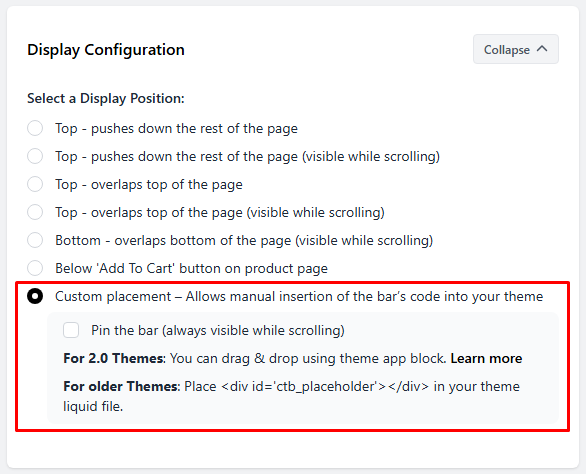
To begin, make sure the Custom placement option is enabled in your bar campaign under the Display Configuration section.
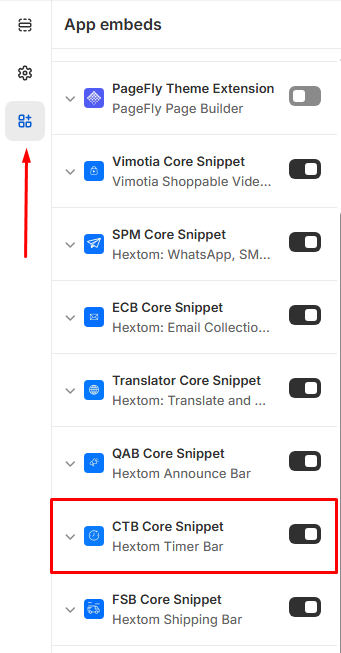
Most importantly, make sure that the CTB Core Snippet is also enabled on your theme editor settings under App embeds.
Add the Countdown Timer Bar App Block
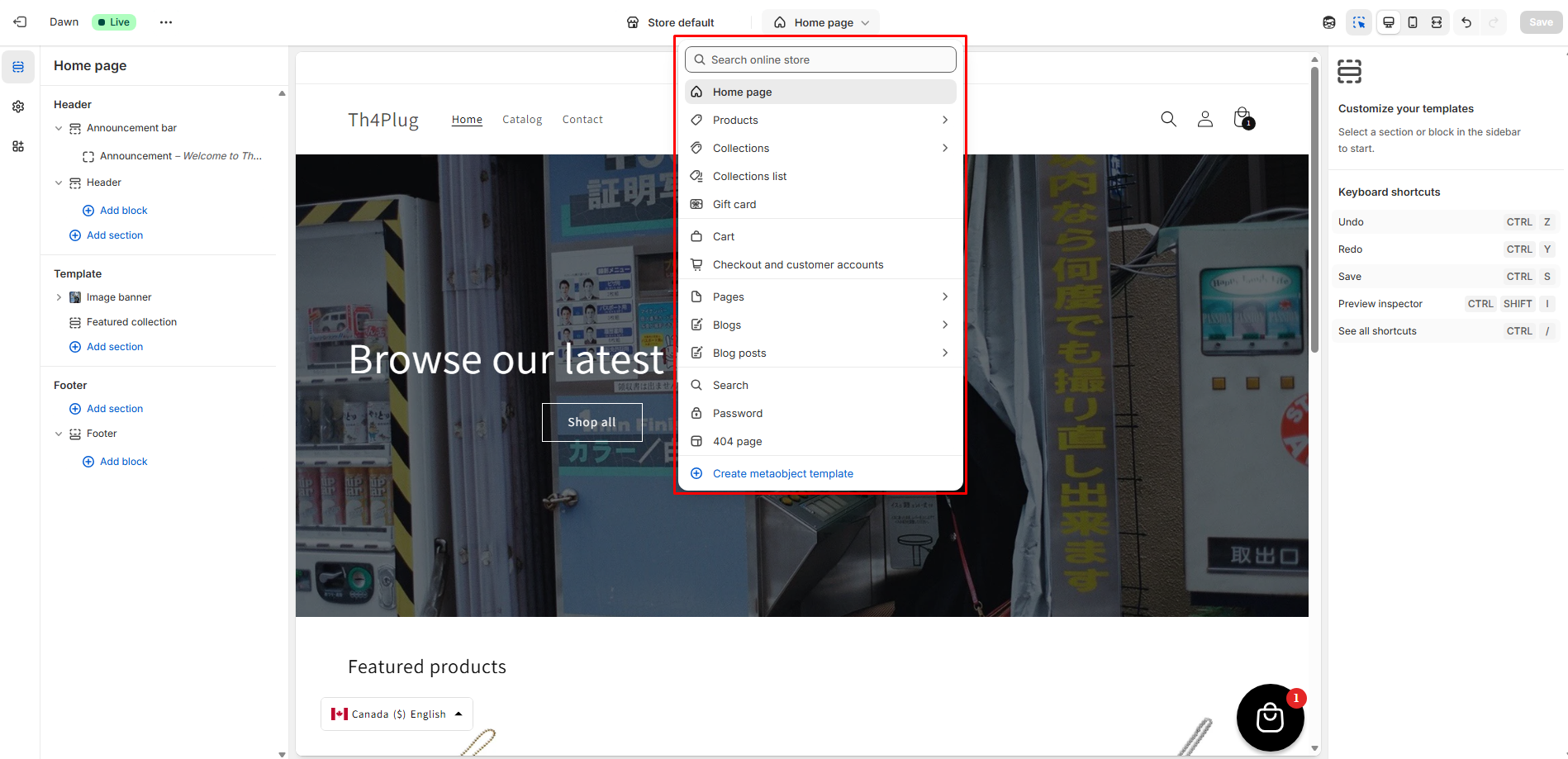
In the theme editor sidebar, choose the section where you’d like to display the countdown timer (for example Home page, Product page, or Collection Page).
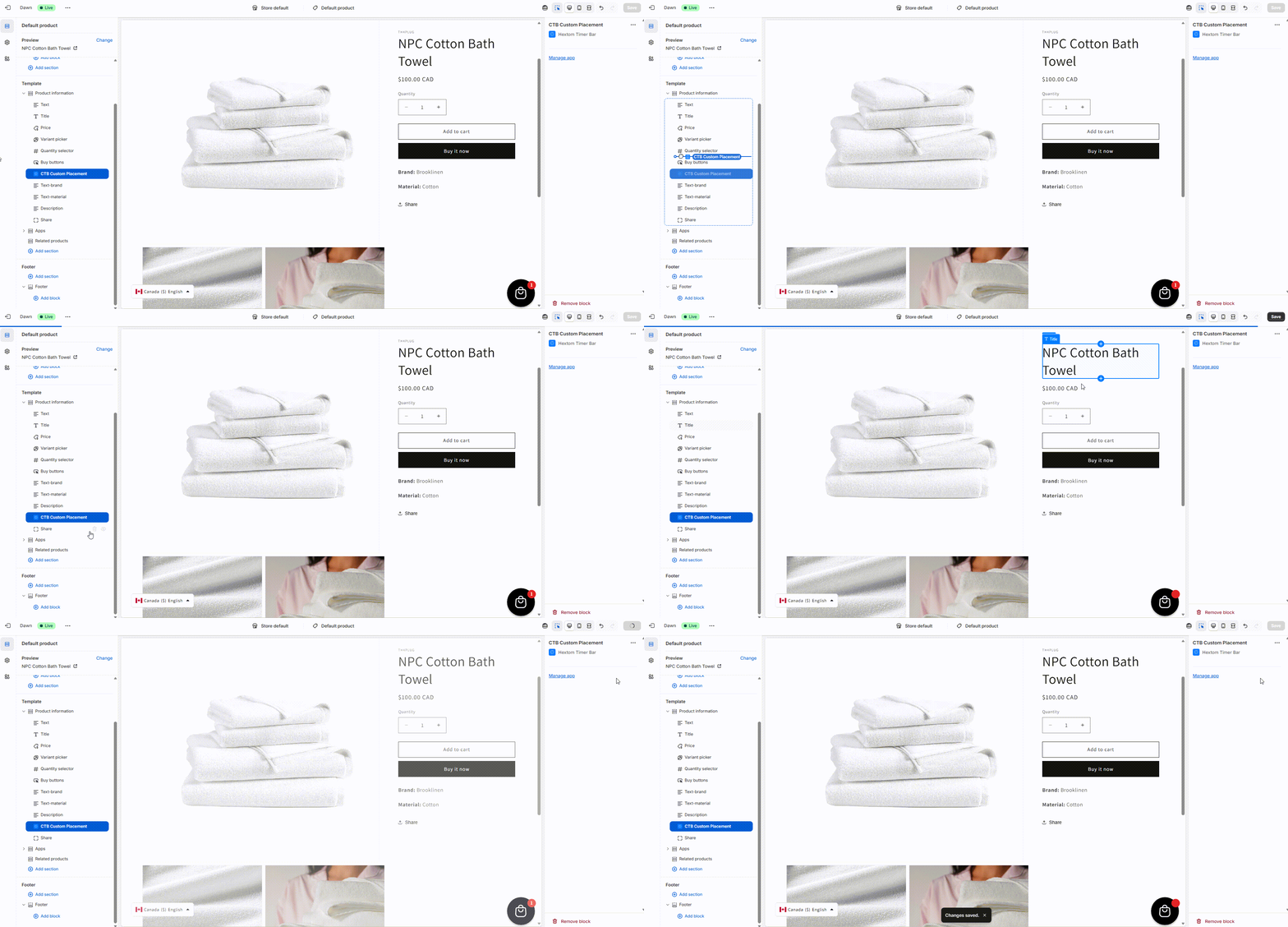
To add the App block on your theme editor, you may follow these simple steps:
- Hover and click on the section you want to display the countdown timer .
- Select Apps.
- Choose the CTB Custom Placement app block.
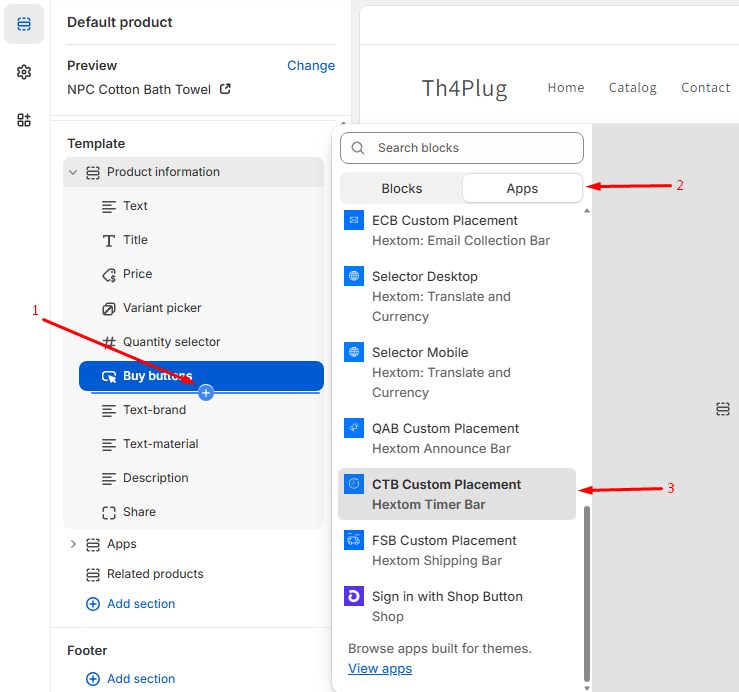
You may also drag it within the designated area. Position it as desired, then click the Save button in the top right corner.
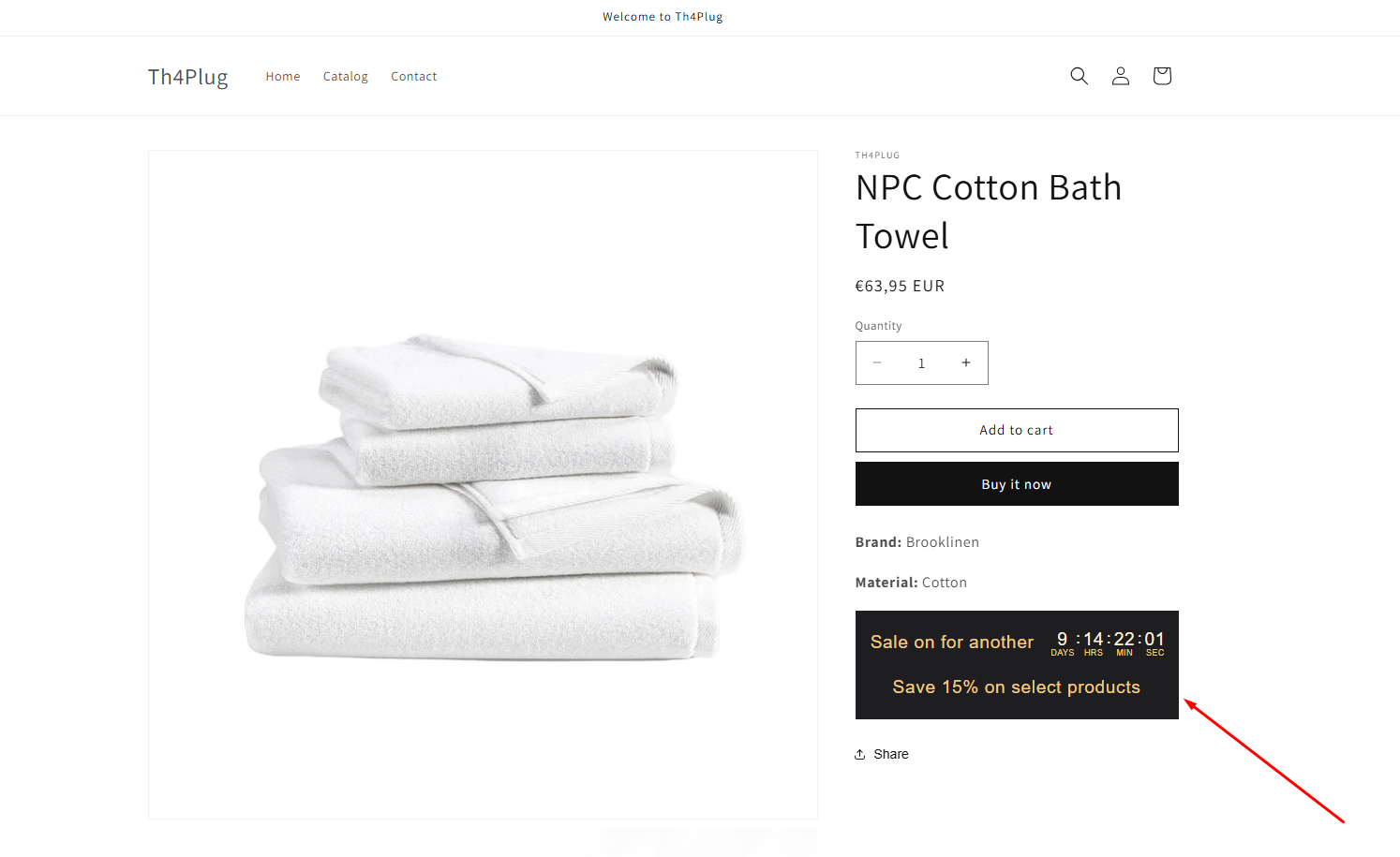
Then it should look like this:
If you run into any issues or need help, feel free to reach us at help@hextom.com.